Tilt Box
The Tilt Box is a visually engaging feature that adds a dynamic 3D tilt effect to a box containing an icon, image, title, and description. As users move their mouse over the box, it tilts interactively, creating an immersive and modern design. This effect is perfect for call-to-action sections, feature highlights, or interactive content blocks.
Content Tab
General
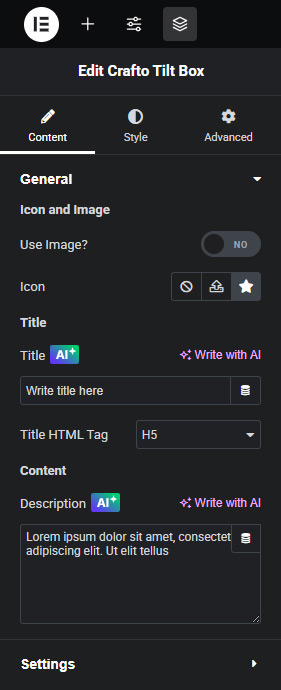
Use Image – Icon and Image Check “Yes” if you want to upload or select a custom icon or image to be displayed. Icon – Icon and Image You can choose from a variety of icons from icon libraries or upload SVG icon. Image – Icon and Image Upload or select the desired image from the WordPress media library. Image Resolution – Icon and Image Select the size for the images, such as original or any thumbnail version. Title – Title Enter the title for the tilt box. Title HTML Tag – Title Select the appropriate HTML tag for the title, such as h2, h3, div, span, etc. Description – Content Enter the description for the tilt box.
Settings
Tilt Offset Adjust the tilt offset to control the angle of the tilt box.
Style Tab
General
Alignment Set the alignment of the content in the widget as left, center or right. Background Color Choose a background color for the tilt box. Border Radius Define the border-radius for the tilt box. Padding Set the padding inside the tilt box. Margin Set the margin around the tilt box.
Icon
Icon Color Select color for the tilt box icon in both “Normal” and “Hover” states. Icon Size Set the size of the tilt box icon. Spacing Set the space between for the icon and title.
Image
Width Set the width for the image. Height Set the height for the image. Spacing Set the space between for the image and title.
Title
Title Type Select the title type style – normal or stroke. Text Stroke Adjust stroke width, color, and opacity to achieve the desired effect. Text Shadow Set the text shadow effect for the title. Typography Adjust the font settings for the title. Color Select the color for the title. Spacing Set the space between for the title and description.
Content
Typography Adjust the font settings for the content. Color Select the color for the content. Width Adjust the width for the content.